

In modern web development, the journey from a visual design concept to functional, production-ready code is often a major bottleneck. This manual conversion process is time-consuming, prone to human error, and can significantly slow down project timelines. What if you could automate this entire workflow, turning static images, Figma designs, or even existing website URLs into clean code in minutes? This is where the power of AI design to code conversion comes into play.
DesignToCodeAI is an advanced platform that leverages a sophisticated multi-agent AI system to transform your visual designs into high-quality, responsive HTML with Tailwind CSS or ready-to-import Elementor templates. It’s built to accelerate your workflow, whether you’re a freelance designer, a WordPress developer, or a product manager leading a fast-paced team.
This comprehensive guide will walk you through every aspect of using DesignToCodeAI. We’ll cover everything from the underlying AI technology to a step-by-step tutorial for converting your first design, ensuring you have the knowledge to streamline your projects and bring your ideas to life faster than ever before.
Table of Contents
- How DesignToCodeAI Works: The Multi-Agent AI System
- Core Features: A Deep Dive into Your Conversion Toolkit
- Step-by-Step Tutorial: Converting Your First Design
- Understanding Your Output: HTML vs. Elementor Template
- Expert Tips: Best Practices for High-Accuracy Conversions
- DesignToCodeAI Pricing Explained: The Points System
- Security and Privacy: Protecting Your Intellectual Property
- Frequently Asked Questions (FAQ)
How DesignToCodeAI Works: The Multi-Agent AI System
DesignToCodeAI’s accuracy stems from its powerful multi-agent AI system. Instead of a single, monolithic AI, the platform uses a team of specialized AI agents that collaborate to manage every step of the conversion process, ensuring precision and speed from analysis to final output.
The Analysis Agent: Deconstructing Your Design
When you upload an image or provide a URL, the first agent meticulously analyzes the design. It identifies key layout structures, typographical elements like fonts and sizing, color schemes, and individual components such as buttons, cards, and navigation bars. This deep parsing is the foundation for an accurate code reconstruction.
The Conversion Agent: Writing Clean, Semantic Code
Once the design is deconstructed, the conversion agent takes over. This agent is responsible for writing the code. It generates clean, semantic HTML5 that is inherently SEO-friendly, giving search engines a clear understanding of your content’s structure. For styling, it uses the popular utility-first framework Tailwind CSS, ensuring the code is modern, maintainable, and optimized.
The Review & Optimization Agent: Ensuring Quality
After the initial code is generated, a final agent reviews and optimizes the output. It cross-references the code against the original design to ensure pixel-perfect accuracy, checks for responsiveness using modern CSS like flexbox and grid, and refines the structure for optimal performance. This collaborative process is what allows DesignToCodeAI to produce production-ready results consistently.
Core Features: A Deep Dive into Your Conversion Toolkit
DesignToCodeAI is equipped with a suite of powerful features designed to handle a wide range of web development tasks. Understanding these tools will allow you to maximize the platform’s potential and integrate it seamlessly into your workflow.
Supported Input Sources: From Images to Live Websites
Flexibility is at the core of the platform. You can provide your design in several convenient formats:
- Design Images (PNG/JPG): Ideal for any screenshot to HTML or image to Elementor template conversion. Export from tools like Figma, Adobe XD, or Sketch and upload directly (up to 20MB).
- Figma URL: Directly paste a Figma link for a more streamlined conversion process.
- Website URL: Input any live website URL to generate code from an existing site. For instance, a freelance developer can use this to quickly generate a base structure from a client’s old website before starting a redesign, saving hours of boilerplate coding.
Powerful Output Options: HTML and Elementor
You have two primary output formats to choose from, catering to different development needs:
- HTML with Tailwind CSS: A single, clean HTML file with embedded Tailwind CSS. This is perfect for a Figma to HTML project, static sites, or for developers who prefer working directly with code.
- Elementor Template JSON: A single JSON file that can be directly imported into WordPress via the Elementor Template Import option. An agency, for example, can use this for a rapid Figma to Elementor workflow, converting a custom-designed hero section, importing it, and having it live on a client’s WordPress site in under five minutes.
The Redesign Engine: Reimagining Existing Layouts
Beyond simple conversion, the ‘Redesign’ option allows you to leverage AI for a complete visual overhaul. When you provide a website URL and select this feature, you initiate an AI website redesign. The AI analyzes the source content and structure but generates a fresh, modern, and professional layout, effectively acting as an AI-powered design assistant to revitalize an outdated site.
Iterative Refinement: Perfecting Your Code with AI
No AI is perfect on the first try, especially with complex designs. DesignToCodeAI includes a powerful refinement workflow. After the initial generation, you can provide simple, text-based instructions to make adjustments. For example, you can ask the AI to ‘adjust colors to match brand’ or ‘make the hero section full width’. This iterative process allows you to fine-tune the output until it perfectly matches your vision.
Step-by-Step Tutorial: Converting Your First Design
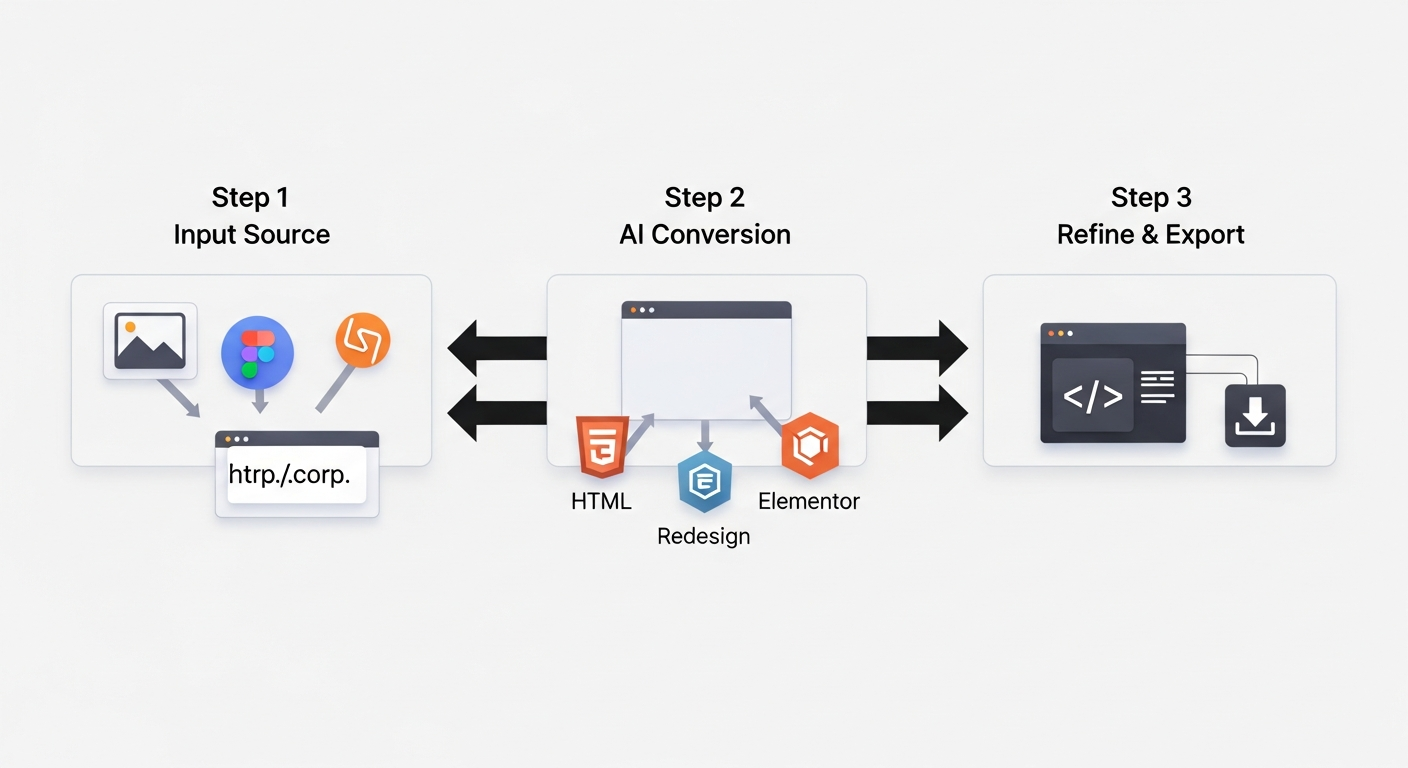
Let’s walk through the process of converting a design image into production-ready HTML code. The platform is designed to be intuitive, following a simple three-step process: upload, convert, and refine.
Step 1: Choose Your Input Source
Navigate to the main generation interface. You will see three options for your input source: ‘Upload Design’, ‘Figma URL’, and ‘Website URL’. For this tutorial, we will use ‘Upload Design’. Simply drag and drop your design image (PNG or JPG) into the designated area or click to browse your local files.
Step 2: Configure Your Output Settings
Once your image is uploaded, move to the ‘Output Settings’ panel. Here, you will configure how the AI processes your request.
- Generate option: Choose between ‘HTML’, ‘Elementor Template’, or ‘Redesign’. We’ll select ‘HTML’.
- Iterations: This setting determines how many times the AI will analyze and refine the design during the initial generation. While one iteration is faster, selecting two or more can significantly improve accuracy for complex designs, though it may take longer. For a standard design, two iterations is a recommended starting point.
The cost in ‘Power Points’ for the generation will update dynamically based on your selections.
Step 3: Initiate Generation and Monitor the Console
Click the ‘Generate’ button. The interface will update to show a progress bar and a live console. The console provides real-time feedback on the AI’s process, showing steps like ‘Processing iteration 1 of 1’ and ‘Initiating code generation’. This transparency allows you to track the conversion as it happens.
Step 4: Preview and Analyze the Initial Output
Once the generation is complete, the output section will display the generated code in a built-in editor. Above the code, you’ll find several options: ‘Preview’, ‘Copy’, ‘Download’, and ‘Clear’. Click the ‘Preview’ button to open a new tab that renders a live, interactive version of your generated webpage. This allows you to inspect the layout, responsiveness, and overall accuracy.
Step 5: Refine the Code Using Natural Language Instructions
If the preview isn’t quite right, you don’t need to edit the code manually. Below the code editor, there is a refinement section. Here, you can type simple instructions to make changes. For example, if the colors are slightly off, you can select the ‘Color adjust’ preset and type ‘Adjust colors to match brand’. Then, click the ‘Refine’ button. The AI will process your request and update the code accordingly.
Step 6: Copy or Download Your Production-Ready Code
After you are satisfied with the preview and any refinements, you can export your code. Click the ‘Copy’ button to copy the entire HTML file to your clipboard, or click ‘Download’ to save the file directly to your computer. Your code is now ready to be used in your project.
Understanding Your Output: HTML vs. Elementor Template
Choosing the right output format is crucial for an efficient workflow. Both HTML and Elementor JSON files are high-quality, but they serve different purposes. The following table breaks down the key differences to help you decide which is best for your project.
| Feature | HTML with Tailwind CSS | Elementor Template JSON |
|---|---|---|
| Best Use Case | Static websites, custom web applications, rapid prototyping, or integration into non-WordPress projects. | Building pages or entire websites within the WordPress ecosystem using the Elementor page builder. |
| Output Format | A single .html file containing all structure, styling (Tailwind CSS), and JavaScript. |
A single .json file designed for Elementor’s template import system. |
| Dependencies | Requires Tailwind CSS (included via CDN in the generated file for ease of use). | Requires WordPress and the Elementor (or Elementor Pro) plugin to be installed. |
| Ease of Editing | Requires knowledge of HTML and CSS to edit the code directly in a text editor like VS Code. | Can be edited visually using Elementor’s drag-and-drop interface, requiring no coding knowledge. |
| Ideal User | Front-end developers, web developers, and technical designers. | WordPress developers, website builders, agencies, and freelance designers working with Elementor. |
Code Quality: Responsive, Semantic, and SEO-Friendly
Regardless of the format you choose, DesignToCodeAI prioritizes code quality. The AI is trained to produce responsive layouts using modern CSS practices, ensuring your site looks great on desktops, tablets, and mobile devices. Furthermore, it generates semantic HTML, which uses meaningful tags to structure content. This not only improves accessibility but also provides a clear roadmap for search engines, supporting your SEO efforts from the ground up.
Expert Tips: Best Practices for High-Accuracy Conversions
To get the most out of the platform and achieve near-perfect results, follow these best practices gathered from real-world implementations.
Provide High-Resolution, Clearly Structured Designs
The AI’s accuracy is directly influenced by the quality of the input. Use clear, high-resolution images where text is readable and layout elements are distinct. Avoid blurry screenshots or overly complex, cluttered designs, as this can confuse the analysis agent.
Convert Complex Pages Section by Section for Elementor
For best results when converting to Elementor, crop your design into major sections (e.g., hero, services, testimonials, footer) and convert each one separately. This improves AI accuracy, results in cleaner widget mapping, and gives you more modular flexibility when assembling the page in Elementor.
Leverage Multiple Iterations for Complex Layouts
Don’t hesitate to use the ‘Iterations’ setting. For designs with overlapping elements or intricate grids, selecting 2, 3, or even 4 iterations allows the AI agents more time to analyze the layout. While it consumes more points and time, it often results in a much more accurate initial output, saving you refinement time later.
Use Specific and Clear Instructions for Refinements
When using the AI refinement feature, be as specific as possible. Instead of saying ‘fix the button’, try ‘change the primary button background color to #0055FF and increase the font size to 16px’. The more detailed your prompt, the better the AI can understand and execute your request accurately.
Common Mistakes to Avoid
- Uploading low-resolution or cluttered designs: Blurry images or designs with overlapping, ambiguous elements can confuse the AI’s analysis agent, leading to inaccurate layouts and poorly structured code. Always start with the clearest source possible.
- Using vague refinement prompts: A poor prompt like ‘fix the text’ is too ambiguous. A good prompt is specific: ‘change the H2 heading font to Montserrat and set the color to #1A202C’. Provide clear, actionable instructions for the best results.
- Ignoring the preview feature: A common pitfall is downloading the code without thoroughly checking the live preview. Always use the preview to test responsiveness and interactivity on different screen sizes to catch any issues before implementation.
A key strategy to consider is modular conversion. Treating each webpage section as an independent component not only improves the AI’s focus but also aligns with modern component-based development practices, making your final Elementor build easier to manage and update.
DesignToCodeAI Pricing Explained: The Points System
DesignToCodeAI operates on a flexible, transparent, and user-friendly points-based system. This pay-as-you-go model means there are no monthly subscriptions or hidden fees—you only pay for what you actually use.
How Points Work: No Subscriptions, No Surprises
Every code generation or refinement task consumes a certain number of ‘Power Points’. The cost for a standard conversion ranges from 300 to 500 points, depending on the complexity and the number of iterations you select. This model is ideal for freelancers and agencies with fluctuating workloads, as your points never expire. You can purchase them when you need them and use them at your own pace.
Choosing the Right Point Pack for Your Needs
Points are available in various packs to suit different usage levels, from a ‘Starter Pack’ for occasional conversions to a ‘Power Pack’ for heavy users. Each pack offers a different volume of points, with larger packs providing better value. For more details on the available options, you can visit the Pricing page.
Free Points for New Users
To help you get started and experience the platform’s capabilities firsthand, all new users receive 500 free points upon signing up. This is typically enough for one or two standard conversions, allowing you to test the entire workflow with your own designs at no cost.
Security and Privacy: Protecting Your Intellectual Property
When working with proprietary designs, security and data privacy are paramount. DesignToCodeAI is built with a privacy-first approach to ensure your intellectual property remains secure and confidential throughout the conversion process.
In-Memory Processing: No Permanent Storage of Designs or Code
A critical aspect of the platform’s security is that neither your uploaded design files nor the generated code are ever stored permanently on our servers. All processing is handled in-memory during your active session. The data is automatically and permanently deleted when your session ends, you refresh the page, or after 24 hours, whichever comes first. You must save any generated code you wish to keep before exiting.
Data Encryption and Secure Handling
All traffic between your browser and the DesignToCodeAI platform is secured with TLS encryption, protecting your data in transit. On the backend, sensitive information is encrypted at rest using industry-standard AES-256 encryption, and access to systems is strictly controlled.
Your Ownership of Uploads and Generated Code
According to the terms and conditions, you retain full ownership of your uploaded designs and website URLs. You grant the platform a temporary license solely for the purpose of processing them to deliver the service. Once generated, you also own the outputted code and are free to use it for personal or commercial projects.
Frequently Asked Questions (FAQ)
Here are answers to some of the most common questions about using DesignToCodeAI.
What types of design files can I convert with DesignToCodeAI?
You can upload design images or screenshots in PNG or JPG format, with a maximum file size of 20MB. This allows you to easily export designs from popular tools like Figma, Adobe XD, or Sketch and upload them directly to begin the AI design to code conversion process.
How accurate is the AI code conversion?
DesignToCodeAI uses a multi-agent AI system that aims for pixel-perfect accuracy by analyzing layout, styling, fonts, and components. While most outputs are high-quality and production-ready, highly complex or unconventional designs might require minor manual adjustments or refinement using the platform’s text-based instruction feature.
Can I convert a multi-section Figma design into a single Elementor template?
For the best results and highest accuracy, it is recommended to convert each major section of your design separately. Converting a long, multi-section page as a single image can reduce the AI’s accuracy. By converting sections individually, you get cleaner widget mapping and more modular templates that are easier to manage within Elementor.
What happens if a code generation fails?
If a generation fails due to a technical error on our side, the points used for that attempt are typically refunded to your account automatically. If you believe points were deducted in error and not refunded, please reach out to our support team with the details of the issue for a prompt resolution. You can find more answers to common questions on our official FAQs page.
Are there any subscriptions or do my points expire?
No, DesignToCodeAI does not use a subscription model. It is a pay-as-you-go service where you purchase ‘Power Points’ in packs. These points never expire, giving you the flexibility to use them whenever you need them without worrying about a recurring monthly fee.
Conclusion: Accelerate Your Workflow from Concept to Launch
Automating the design-to-code process is no longer a futuristic concept; it’s a practical solution that can save countless hours and dramatically increase productivity. By leveraging the advanced multi-agent system of DesignToCodeAI, you can eliminate manual coding bottlenecks, reduce errors, and focus more on creative problem-solving and innovation. The platform provides the tools to transform any design image, Figma file, or website URL into clean, responsive, and production-ready code for any project.
While the current focus is on production-ready HTML and Elementor, the potential for AI-driven conversion is vast. The evolution of this technology points towards future support for popular frameworks like React and Vue, further bridging the gap between design and development for an even wider range of projects.
Ready to revolutionize your development workflow? Try It Free today and get 500 free points to convert your first design in minutes.