Manually converting a visual design into functional code is one of the most time-consuming and error-prone stages in web development. The back-and-forth between designers and developers, the tedious process of slicing assets, and the challenge of achieving pixel-perfect accuracy can slow down projects and stifle creativity. This is precisely the problem that AI-powered tools are now solving with remarkable efficiency. This guide will show you how to use DesignToCodeAI to automate this entire process, transforming your designs into production-ready code in minutes.
DesignToCodeAI leverages a sophisticated AI system to analyze your design images, screenshots, or even existing website URLs and convert them into clean, responsive HTML with Tailwind CSS or ready-to-import Elementor templates. Whether you’re a freelance designer, a WordPress developer, or part of a fast-moving product team, this guide provides a comprehensive walkthrough of the entire platform, from your first conversion to mastering advanced features.
Table of Contents
- What is DesignToCodeAI? Understanding the Core Technology
- Getting Started: A Step-by-Step Guide to Your First Conversion
- Step-by-Step Conversion Guides for Every Workflow
- Choosing the Right Output: HTML vs. Elementor Template
- Mastering the AI: Advanced Techniques for Pixel-Perfect Results
- Tailoring DesignToCodeAI to Your Role
- Understanding the Points System and Pricing
- Data Privacy and Security: What Happens to Your Designs?
- Frequently Asked Questions
What is DesignToCodeAI? Understanding the Core Technology
DesignToCodeAI is an AI-powered platform designed to automate the conversion of visual designs into high-quality, front-end code. It acts as a bridge between design tools like Figma, Sketch, and Adobe XD and development environments like WordPress or a custom HTML project. By interpreting the visual structure of an input, it generates code that developers can immediately use, significantly accelerating the web creation workflow.
The Power of a Multi-Agent AI System
At its core, DesignToCodeAI utilizes a multi-agent AI system. This isn’t a single, monolithic AI; instead, it’s like having a specialized team of AIs working together. One agent analyzes the layout, another extracts styles like colors and fonts, a third reviews the final code for accuracy, and a fourth optimizes the output for responsiveness. This collaborative process results in a much more precise and reliable output than a single AI model could achieve alone, ensuring a deeper understanding of design intent.
Key Capabilities at a Glance
- Pixel-Perfect HTML: Generate clean, semantic HTML structured with modern CSS (flexbox/grid) and styled with Tailwind CSS for easy customization.
- Elementor Template Generation: Create a single JSON file that can be directly imported into WordPress with Elementor, preserving all styling and layout.
- Website URL & Redesign: Use any existing website URL as inspiration to generate a new template or initiate a complete, modern redesign of the layout.
- Multiple Input Formats: The platform accepts static images (PNG, JPG), screenshots, and direct website URLs.
Getting Started: A Step-by-Step Guide to Your First Conversion
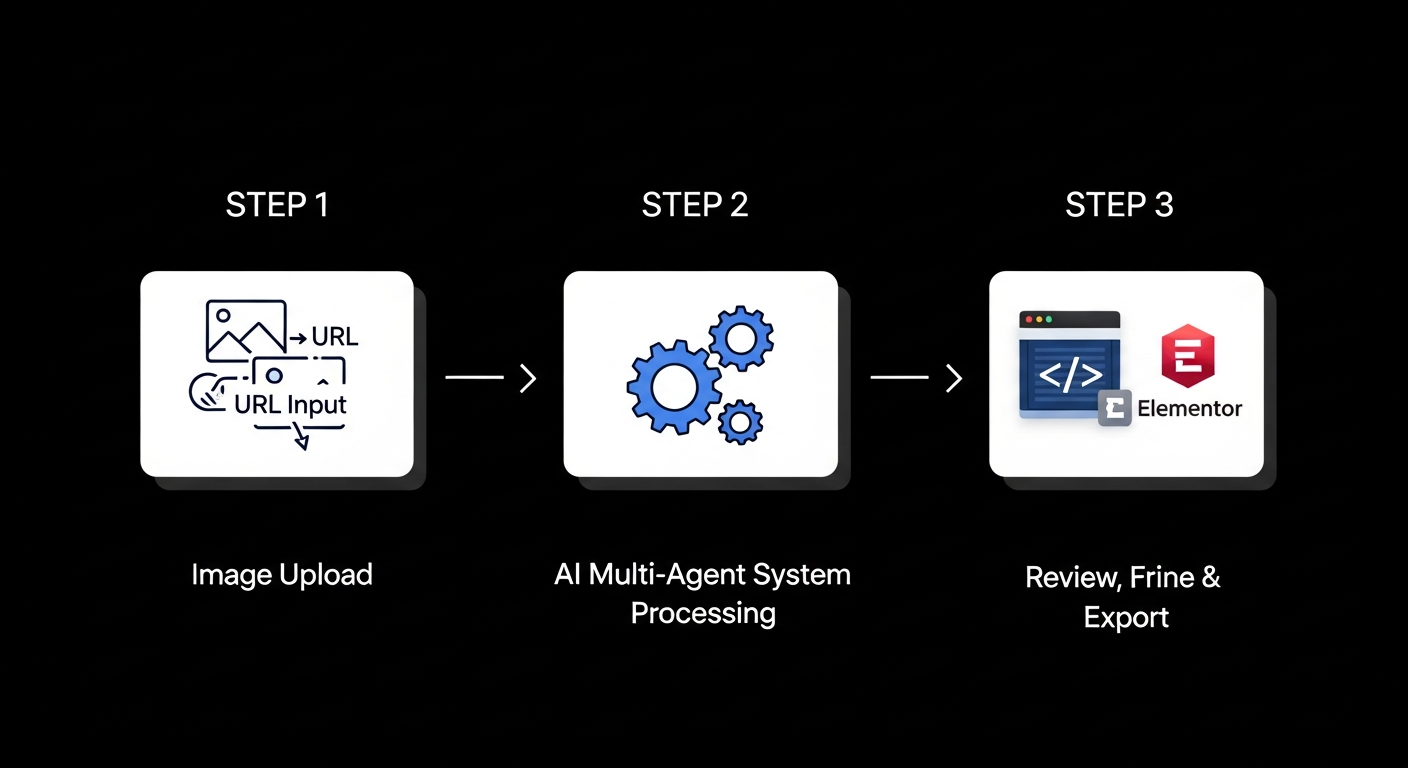
The platform is designed for speed and simplicity. You can go from a static design to usable code in just three steps. New users receive 500 free points upon signup, so you can complete your first few conversions without any commitment.
Step 1: Upload Your Design or Enter a URL
Begin by providing your design input. You can simply drag and drop a design image (in PNG or JPG format) or screenshot directly onto the platform. Alternatively, you can enter a website URL to use as a source for inspiration or conversion.
Step 2: Configure Your Output and Let the AI Work
Next, select your desired output format: HTML or Elementor. You can also customize preferences, such as the number of AI iterations. More iterations can lead to a more refined result for complex designs but will use more points. Once you’ve set your preferences, initiate the AI conversion and watch the real-time progress engine do its work.
Step 3: Review, Refine, and Export Your Code
After the initial generation, the advanced preview engine will display the output. You can review the live preview and the generated code. If it’s not perfect, you can use further AI iterations or provide additional text-based instructions to refine specific elements. Once you are satisfied, you can copy the code or export the complete project as a downloadable bundle.
Step-by-Step Conversion Guides for Every Workflow
To get the best results, it helps to tailor your input to the specific workflow. Here’s how to handle the most common conversion tasks to maximize accuracy and efficiency.
How to Convert a Figma, Sketch, or Adobe XD Design
This workflow is ideal for designers who want to bring their high-fidelity mockups to life. The process involves exporting your design as a static image and uploading it to the platform.
For optimal results, export your design frame or artboard as a PNG file at 2x resolution. This higher resolution provides the AI with more detail, leading to better recognition of fonts, spacing, and small UI elements. Whether your goal is a `Figma to Elementor` template or `Figma to HTML` code, a high-quality source image is the most critical factor for success.
How to Turn a Screenshot into HTML with Tailwind CSS
Using a screenshot is a quick way to capture a design concept from a webpage, an app, or any visual source. The key to a successful screenshot-to-html conversion is precision.
Before uploading, crop the screenshot to include only the specific section you want to convert. For example, if you only need the hero section, crop out the browser chrome, sidebars, and other irrelevant parts of the screen. A clean, focused screenshot helps the AI concentrate on the correct layout and avoids misinterpretations, resulting in cleaner, more accurate HTML code.
How to Convert a Website URL into a New Template or Redesign
The URL input feature is one of the most powerful tools for rapid development and inspiration. When you input a URL, you have two primary options: replication and redesign.
- Replication: The AI analyzes the live website’s structure and styling to generate a new HTML or Elementor template that closely matches the original. This is perfect for migrating an old website to a new framework or quickly scaffolding a page based on a known layout.
- Redesign: By selecting the ‘Redesign’ option, you instruct the AI to use the source URL for inspiration but to create a completely new, modern layout. The AI will reinterpret the content structure with updated UI/UX principles, offering a fresh design direction without requiring a new mockup.
Choosing the Right Output: HTML vs. Elementor Template
The platform generates two distinct types of production-ready outputs. Your choice will depend entirely on where and how you plan to use the code.
When to Choose HTML with Tailwind CSS
Select the HTML output if you are building a custom website or a static web page. The AI generates a single, clean HTML file. The generated HTML is styled using Tailwind CSS, a modern, utility-first framework. This means styling is applied directly in the HTML with classes like `bg-blue-500` or `text-lg`, making the code highly customizable and easy to maintain without writing separate CSS files. This output is ideal for front-end developers who need a quick start on a project without having to write boilerplate from scratch.
When to Choose an Elementor Template JSON
If you are a WordPress developer or building a site with the Elementor page builder, this option is a game-changer. The AI generates a single JSON file formatted specifically for Elementor. You can import this file directly into your WordPress site via the Elementor template library. The system maps your design components to the appropriate Elementor widgets, preserving styling, layout, and responsiveness for seamless integration.
Comparison of Output Formats
| Feature | HTML with Tailwind CSS | Elementor Template JSON |
|---|---|---|
| Best For | Custom websites, static pages, web applications. | WordPress websites using the Elementor page builder. |
| File Type | Single .html file with CSS/JS. | Single .json file. |
| Editing Method | In a code editor (e.g., VS Code). | Visually within the Elementor editor in WordPress. |
| Ideal User | Front-end developers, web designers with coding skills. | WordPress developers, agencies, and freelance designers. |
Mastering the AI: Advanced Techniques for Pixel-Perfect Results
While the AI is highly accurate, complex designs can sometimes require guidance to achieve a perfect conversion. The platform provides powerful tools for refining the output without touching the code yourself.
Using Iterations to Refine AI Output
Think of iterations as giving the AI a second or third chance to perfect its work. If the initial output has minor layout issues or component misinterpretations, running another iteration allows the AI to re-analyze its own work and make corrections. This is often the quickest way to fix small imperfections.
Providing Clear Additional Instructions
For more specific changes, the refinement workflow allows you to provide natural language instructions. This chat-based refinement is incredibly powerful for fine-tuning details that the AI may have missed on its first pass.
Example Refinement Prompts
To get the most out of this feature, be specific. Here are some examples of effective prompts:
"Change the font for all H2 tags to 'Inter' and increase the font-weight to 700.""Add a 2rem margin to the bottom of the hero section.""Make the background color of the footer section #111827.""Ensure all images have a descriptive 'alt' attribute for SEO.""Convert the three feature boxes into a responsive three-column grid using CSS Grid."
A key strategy to consider, especially for Elementor users, is to convert complex, multi-section designs one section at a time. Uploading an image of just the ‘Hero’ section, then the ‘Services’ section, and so on, improves AI accuracy and results in cleaner widget mapping. This approach gives you more flexibility when assembling the page in Elementor, avoiding the complexity of a single, massive JSON file.
Tailoring DesignToCodeAI to Your Role
DesignToCodeAI is not just for one type of user. Its flexibility allows it to fit into various professional workflows, providing unique benefits for different roles.
For Freelance Designers: Accelerate Handoffs & Add Value
As a freelance designer, the handoff to a developer can be a source of friction. By using DesignToCodeAI, you can provide clients with not just a static design, but also production-ready HTML or an easily importable Elementor template. This accelerates the development process for your client and allows you to offer an additional, valuable service. It bridges the gap in your skillset and enables you to take on projects that might otherwise require a development partner.
For WordPress Agencies: Streamline Client Builds
For agencies specializing in WordPress, speed and efficiency are paramount. The `design to Elementor` workflow is a massive time-saver. Instead of manually recreating complex client designs within the Elementor editor, your team can convert them automatically. This reduces build time from days to hours, allowing you to handle more projects, increase profit margins, and deliver client sites faster than ever before.
For Product Teams & Startups: Supercharge Prototyping
In a fast-paced startup environment, rapid prototyping is essential for testing ideas and iterating on user feedback. DesignToCodeAI allows product teams to turn static Figma or Sketch designs into interactive HTML prototypes almost instantly. This means you can build and test a functional front-end concept in a fraction of the time it would take to code it manually, enabling a much faster product development lifecycle.
Understanding the Points System and Pricing
DesignToCodeAI operates on a flexible, pay-as-you-go model using ‘Power Points’ rather than a recurring monthly subscription. This ensures you only pay for what you actually use.
How Power Points Work
Every code generation consumes a set number of points. A standard conversion costs between 300 and 500 points, depending on the number of iterations you select. You can purchase points in packs, with larger packs offering a better value. New users start with 500 free points to test the platform thoroughly.
Estimating the Cost of Your Conversions
The pricing is transparent. The ‘Starter Pack’ provides 1,500 points, enough for approximately 3-5 standard conversions. The larger ‘Pro’ and ‘Power’ packs offer significantly more points for agencies and high-volume users. You can always check your balance and purchase more points as needed. For more details, you can always visit the Pricing page.
Data Privacy and Security: What Happens to Your Designs?
In an era of data sensitivity, it’s crucial to know how your intellectual property is handled. DesignToCodeAI is built with a privacy-first approach.
Our Commitment: No Storage of Uploads or Generated Code
The platform does not store your uploaded design files or the resulting generated code on its servers. Your assets are processed temporarily and are permanently deleted after your session ends or you refresh the page. This means you must save any code you wish to keep before exiting.
Temporary In-Memory Processing Explained
All processing happens in volatile memory during your active session. Your design is loaded into memory for the AI to analyze, converted into code, and held there for you to preview and download. Once the session is over, that memory is cleared. This ensures your designs remain your own and are never written to a permanent disk on our servers.
Your Intellectual Property Rights
You retain full ownership of your uploaded designs. Likewise, you own the generated code and are free to use it for any commercial or personal projects, subject only to the licenses of any third-party dependencies (like fonts or libraries) your design might use.
Frequently Asked Questions
Here are answers to some common questions about how to use DesignToCodeAI.
What types of designs can I convert with DesignToCodeAI?
You can upload design images or screenshots in PNG or JPG format, up to 20MB. This includes designs exported from tools like Figma, Adobe XD, or Sketch. You can also input a website URL to generate code or initiate a redesign.
How accurate is the AI code conversion?
DesignToCodeAI uses a multi-agent AI system aiming for pixel-perfect accuracy. Most outputs are production-ready, but complex designs may need minor adjustments. You can use the Iterations and Additional Instructions features to refine results.
Is the generated code responsive and SEO-friendly?
Yes. The AI produces responsive layouts using modern CSS (flexbox/grid) and writes semantic HTML. This structure helps search engines understand your content, supporting good SEO practices.
If a generation fails, are my points refunded?
Yes, if a generation fails due to a technical error on our side, the points used are typically refunded automatically. If you encounter an issue and don’t see a refund, please contact our support team for assistance.
What is your refund policy for Point Packs?
Point Packs are non-refundable once any points have been used. If you have not used any points from a pack, you may request a refund within 7 days of purchase by contacting support.
By automating the most tedious parts of front-end development, DesignToCodeAI empowers designers, developers, and agencies to build websites faster and more efficiently. You can now focus on creative problem-solving and delivering value, letting the AI handle the complex work of code conversion.
Ready to accelerate your workflow? Try It Free today and claim your 500 free points to experience the future of web development firsthand.