
Manually rebuilding a design from Figma, Sketch, or a simple screenshot in Elementor is a meticulous, time-consuming process that drains hours from your development workflow. You painstakingly recreate every section, adjust every setting, and tweak every style, all while trying to achieve a pixel-perfect match. What if you could automate this entire process, converting a design image or even a live website URL directly into a production-ready Elementor template in minutes? This is no longer a futuristic concept—it’s a reality powered by AI.
With modern AI tools, you can bridge the gap between design and development, drastically accelerating your workflow and freeing you to focus on more complex challenges. This comprehensive guide will walk you through the step-by-step process of using DesignToCodeAI to convert any design image (PNG or JPG) or website URL into a fully functional and editable Design to Elementor Template for your WordPress website.
Table of Contents
- What is DesignToCodeAI?
- Prerequisites: What You’ll Need to Get Started
- Step-by-Step Tutorial: From Image to Live Elementor Page
- Beyond Images: Advanced Workflows with Website URLs
- Best Practices for Achieving Pixel-Perfect Conversions
- Troubleshooting Common Conversion Issues
- Understanding the Output: What Exactly is an Elementor JSON File?
- Manual Build vs. AI Conversion: A Workflow Breakdown
- Frequently Asked Questions
What is DesignToCodeAI?
DesignToCodeAI is an AI-powered platform designed to convert visual designs from formats like PNG, JPG, or even website URLs into clean, production-ready code. Unlike other tools that only output raw HTML, DesignToCodeAI offers a specialized option to generate native Elementor Template JSON files, streamlining the process for WordPress developers.
The platform leverages a sophisticated multi-agent AI system where specialized AI agents collaborate to analyze, convert, review, and optimize your designs. This system meticulously deconstructs the layout, typography, colors, and components of your image to generate a structured, editable template that preserves your original vision. This intelligent approach ensures a high-fidelity conversion that maps directly to Elementor’s widgets and structure.
Prerequisites: What You’ll Need to Get Started
Before you begin, make sure you have the following three items ready. The process is straightforward, but having these in place will ensure a smooth experience from start to finish.
- A DesignToCodeAI Account: You’ll need an account to access the generation engine. New users receive 500 free points upon signup, which is enough to run your first conversion. For larger projects, you can explore the flexible, pay-as-you-go plans. You can check our transparent, points-based plans on the Pricing page.
- A High-Quality Design Image (from Figma, Sketch, Adobe XD, etc.): Your source file should be a clear screenshot or export of your design in PNG or JPG format. For the best results, use a high-resolution image without unnecessary clutter or annotations. Alternatively, you can have a live website URL ready.
- A WordPress Website with Elementor: You need a self-hosted WordPress installation with the Elementor page builder plugin installed and activated. This is where you will import and use your final template.
Step-by-Step Tutorial: From Image to Live Elementor Page
Follow these six simple steps to transform your static design into a dynamic, editable Elementor template. This entire process can be completed in just a few minutes.
Step 1: Upload Your Design to the Platform
Navigate to the DesignToCodeAI generator. In the ‘Input Source’ section, ensure ‘Upload Design’ is selected. You can either drag and drop your PNG or JPG file directly into the upload area or click ‘browse’ to select it from your computer.
Step 2: Configure Your Output Settings for Elementor
In the ‘Output Settings’ panel, select ‘Elementor Template’ as your generation option. This tells the AI to generate a JSON file specifically formatted for Elementor’s template library. Next, choose the number of ‘Iterations’.
When to Choose More Iterations
Iterations allow the AI to refine its output for greater accuracy. The trade-off is simple: more iterations lead to better results for complex designs but consume more points and take slightly longer. A good strategy is to start with 1-2 iterations for standard sections. If your design has intricate overlaps, unique component structures, or subtle gradients, selecting 3 or 4 iterations can provide a more polished final product.
Step 3: Initiate AI Generation and Monitor the Console
Click the ‘Generate’ button. The platform will begin processing your request. You can watch the real-time progress in the ‘Console’ window, which shows the AI’s current actions, from parsing the image to generating the elementor structure.
Step 4: Preview, Copy, or Download the Generated JSON File
Once the generation is complete, the output will appear. You will see a live preview of your design. Take a moment to inspect this preview carefully. Look for any obvious discrepancies in layout, spacing, or font sizes. This pre-check can save you time later. Below the preview, you’ll find the generated JSON code. For this workflow, click the ‘Download’ button to save the `.json` file to your computer.
Step 5: Import the Template into Your WordPress Elementor Library
Log in to your WordPress dashboard. Navigate to Templates > Saved Templates. At the top of the page, click the ‘Import Templates’ button. Choose the `.json` file you just downloaded from DesignToCodeAI and click ‘Import Now’.
Step 6: Insert and Review Your New Page or Section
Your new template will now appear in your library. To use it, create a new page or open an existing one with the Elementor editor. Click the grey folder icon to open the library, select the ‘My Templates’ tab, find your newly imported template, and click ‘Insert’. The entire design will be added to your page, ready for you to edit, customize, and publish.
Beyond Images: Advanced Workflows with Website URLs
DesignToCodeAI’s capabilities extend beyond static images. You can leverage any existing website as a direct input source, opening up powerful new workflows for cloning, inspiration, and modernization.
Cloning a Website Layout into Elementor
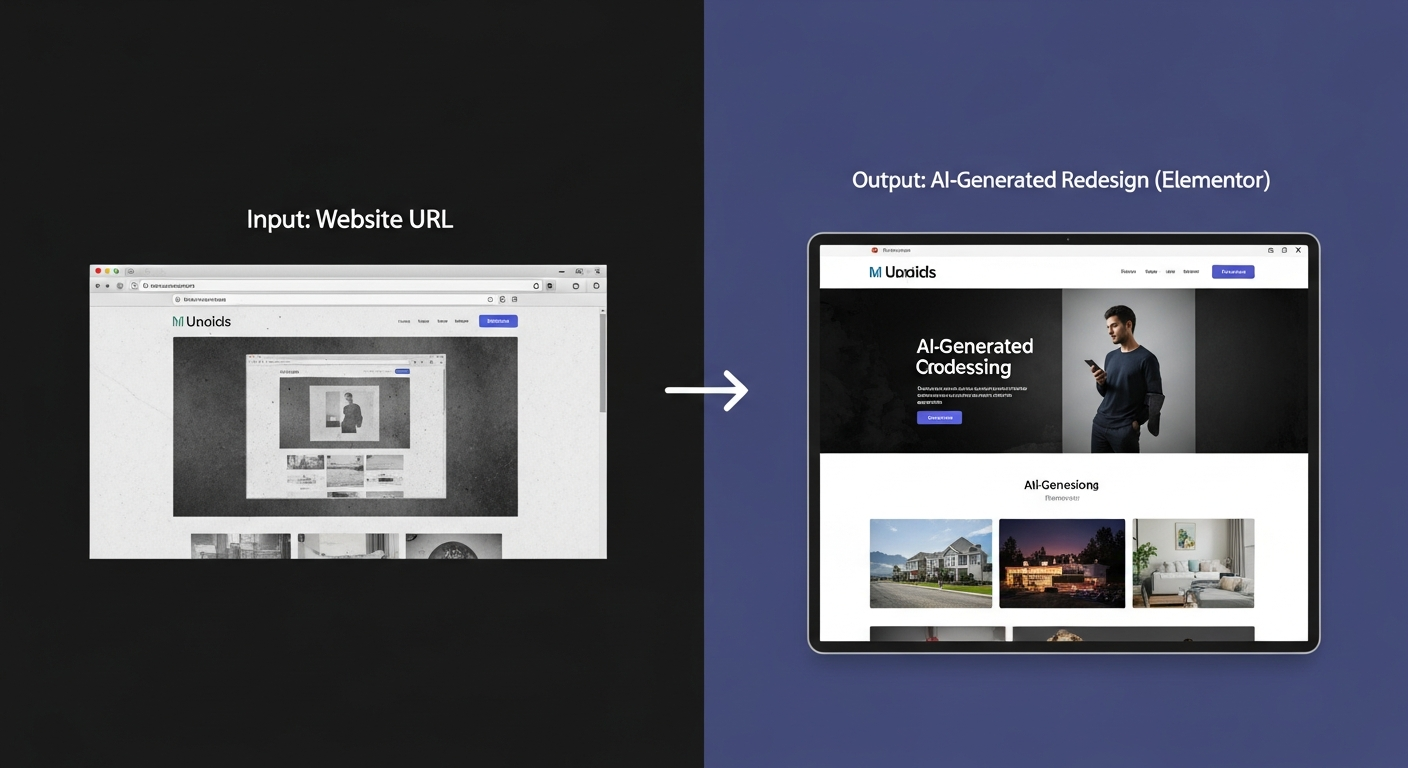
Have you ever seen a website layout you admire and wished you could quickly build a similar structure in Elementor? The Website URL input makes this possible. Instead of ‘Upload Design’, select ‘Website URL’ and paste the link to the page you want to analyze. The AI will process the live site’s structure and styling, then generate an Elementor template that replicates its layout. This is an incredibly powerful tool for rapid prototyping and competitive analysis.
Using the AI Redesign Feature for a Modern Overhaul
The ‘Redesign’ option takes the URL input a step further. This feature is perfect for modernizing outdated websites. When you provide a URL and select the ‘Redesign’ output option, the AI doesn’t just copy the layout—it reinterprets it using modern design principles. It generates a fresh, professional, and fully responsive Elementor template inspired by the original content but with an updated look and feel. This can save dozens of hours in the initial stages of a website redesign project.
Best Practices for Achieving Pixel-Perfect Conversions
To ensure the highest quality output, a little preparation goes a long way. These expert recommendations are split into pre-generation and post-generation steps.
Part 1: Preparing Your Design for Optimal AI Analysis
- Use High-Resolution Exports: The AI’s accuracy is directly related to the quality of the input. A clear, high-resolution image (at least 1920px wide for desktop views) provides more data for the AI to analyze, resulting in better element detection and styling.
- Export Clean Sections: When exporting from Figma or Sketch, hide any designer comments, redlines, or annotations. A clean image focused solely on the UI ensures the AI doesn’t get confused by extraneous elements.
- Convert Complex Pages Section-by-Section: While it’s possible to convert a full-page screenshot, you’ll achieve greater accuracy by uploading individual sections (e.g., hero, services, footer) separately. This approach leads to cleaner widget mapping and simplifies editing within Elementor.
Part 2: Optimizing the Conversion and Post-Import Process
- Utilize Iterations for Fine-Tuning: If an initial conversion isn’t perfect, increasing the iteration count allows the AI to perform additional analysis and refinement cycles. This is particularly useful for designs with intricate layouts or unique styling.
- Provide Additional Instructions: If a specific element isn’t quite right, you can use the chat/instruction feature to guide the AI. For example, you could instruct it to “Make the primary button wider” or “Increase the line height of the paragraph text.”
- Post-Import Checklist: After inserting your template, quickly review key areas like font families (ensure they are loaded in Elementor), button links, image alt text, and responsive settings for tablets and mobile devices.
Troubleshooting Common Conversion Issues
Even with advanced AI, you may occasionally encounter minor discrepancies. Here’s how to address the most common issues, demonstrating the platform’s flexibility.
- Problem: Fonts don’t match perfectly.
Solution: This usually happens if the specific font from your design isn’t installed or available in your WordPress/Elementor setup. First, ensure you have uploaded the custom font via Elementor’s Custom Fonts feature. If the AI chose a similar but incorrect font, you can easily change it globally in Elementor’s Site Settings or directly on the widget. - Problem: There are minor layout misalignments.
Solution: Most minor spacing issues can be corrected in seconds within the Elementor editor. Check the margin and padding values on the container or widget in question under the ‘Advanced’ tab. The AI makes its best guess, but sometimes a quick 5px adjustment is all that’s needed. - Problem: A complex component wasn’t recognized correctly.
Solution: For highly unique or complex components, the AI might not map it perfectly. This is where using the ‘Additional Instructions’ feature before re-running the generation is key. You can tell the AI, for example, “Treat the user profile card as a single container with an image, a heading, and a text widget.” This provides the necessary context for a more accurate result.
A key strategy to consider is that the AI’s first output is an advanced starting point. Using the refinement tools and a quick post-import review transforms a 95% perfect template into a 100% production-ready asset in a fraction of the time it would take to build from scratch.
Understanding the Output: What Exactly is an Elementor JSON File?
The `.json` file generated by DesignToCodeAI is not executable code like HTML or CSS. Instead, it’s a structured data file that acts as a blueprint or a set of instructions for Elementor. JSON (JavaScript Object Notation) is a lightweight format for storing and transporting data.
In this context, the JSON file contains a precise definition of every element in your design. It tells Elementor what widgets to use (e.g., Heading, Image, Button), how to arrange them in containers and columns, and what settings to apply (e.g., color, typography, spacing, borders). When you import this file, Elementor reads the blueprint and reconstructs the page or section exactly as the AI defined it, saving you from having to build it manually.
Manual Build vs. AI Conversion: A Workflow Breakdown
The time savings offered by an AI-driven workflow are substantial. The following table breaks down the typical time commitment for building a moderately complex section manually versus using DesignToCodeAI.
| Development Stage | Time Spent (Manual) | Time Spent (DesignToCodeAI) | Notes/Considerations |
|---|---|---|---|
| Layout Structuring | 30-60 minutes | Automatic | AI excels at creating the foundational container/widget structure. |
| Styling Elements | 45-90 minutes | Automatic | Color, size, and spacing are applied instantly from the design. |
| Typography Settings | 15-30 minutes | Automatic | Requires fonts to be available in WordPress for a perfect match. |
| Responsiveness Tuning | 20-45 minutes | 5-10 minutes (tweaks) | Largely automatic, but a final check and minor adjustments are best practice. |
| Total Time | ~2 to 4 hours | ~5 to 15 minutes | Best for rapid prototyping and standard layouts. Complex creative designs may need minor manual tweaks. |
Frequently Asked Questions
Here are answers to some common questions about converting designs to Elementor templates.
What types of designs can I convert into an Elementor template?
You can upload design images or screenshots in PNG or JPG format (up to 20MB) from tools like Figma, Sketch, or Adobe XD. Additionally, you can use a live website URL as your input source for cloning or redesigning.
How accurate is the AI conversion to an Elementor template?
DesignToCodeAI’s multi-agent system aims for near pixel-perfect accuracy by analyzing layout, styling, fonts, and components. While most outputs are production-ready, highly complex or ambiguous designs may require minor adjustments within the Elementor editor. Using multiple iterations during generation can significantly improve the accuracy of your Design to Elementor Template.
Is the generated Elementor template responsive?
Yes. The AI is trained to produce responsive layouts using modern principles and Elementor’s container/column structure. It automatically creates a layout that adapts to different screen sizes, though you should always preview and test it on various devices. For more detailed information, visit our FAQs.
Are my uploaded designs and generated templates stored on your servers?
No. For user privacy and security, neither your uploaded design images nor the generated Elementor JSON files are stored. All data is processed temporarily during your session and is cleared afterward. You must download and save your JSON file before exiting.
How does the point system work for Elementor conversions?
Each generation costs Points, typically between 300 to 500, depending on the number of iterations you select. More iterations provide a more refined output but use more points. New users receive 500 free points to test the platform.
By automating the most repetitive parts of web development, DesignToCodeAI empowers developers, designers, and agencies to build websites faster and more efficiently than ever before. Stop spending hours manually recreating layouts. Embrace the future of web development and start converting your designs today.