Manually rebuilding a website in Elementor is a time-consuming process that drains hours of valuable development time. You meticulously inspect every element, measure pixels, find fonts, and reconstruct layouts, all while knowing there has to be a faster way. This manual grind is a bottleneck for freelancers, agencies, and developers looking to accelerate their workflow, onboard clients faster, or simply prototype new ideas with speed and precision.
The solution lies in leveraging artificial intelligence to automate the entire process. Imagine providing a URL and, within minutes, receiving a fully structured, editable Elementor template. This is no longer a futuristic concept; it’s a practical reality. Modern AI tools can now analyze a live website’s design, deconstruct its components, and generate a high-fidelity Elementor JSON file, transforming your workflow from hours of manual labor into minutes of automated generation. This guide will show you exactly how to convert any website to an Elementor template using AI.
In this comprehensive tutorial, we will walk you through the entire process using DesignToCodeAI, an AI-powered platform designed for this exact task. You’ll learn how to take any public website URL, convert it into a functional Elementor template, refine the output with simple text commands, and import it directly into your WordPress site for immediate use.
Table of Contents
- Why Convert a Live Website to an Elementor Template?
- Understanding the Technology: AI Conversion vs. Simple Scraping
- Step-by-Step Tutorial: Convert a URL to an Elementor Template
- How to Import and Use Your New Template in WordPress
- Expert Tips for Achieving Pixel-Perfect Conversions
- Troubleshooting Common AI Conversion Issues
- Frequently Asked Questions
Why Convert a Live Website to an Elementor Template?
Converting a live website into an Elementor template is a powerful technique that unlocks significant efficiencies and creative possibilities. It’s more than just cloning a design; it’s about transforming a static visual into a dynamic, editable asset within the WordPress ecosystem. This capability serves several strategic purposes for web professionals.
Accelerate Development and Rapid Prototyping
The most immediate benefit is a dramatic reduction in development time. Instead of building a client’s old site or a new landing page from scratch, you can generate a foundational template in minutes. This allows you to move directly to customization and content population, cutting project timelines by hours or even days. For rapid prototyping, you can quickly convert design mockups or inspiration sites into functional pages to test user flows and concepts.
Gather Actionable Design Inspiration for New Projects
Every website you admire can become a source of learning and inspiration. By converting a site to an Elementor template, you can deconstruct its layout, spacing, typography, and responsive behavior directly within the Elementor editor. This provides a hands-on way to understand how complex designs are built and adapt those techniques for your own projects.
Streamline Website Redesigns and Client Onboarding
When starting a redesign project, you often need to work with the content and structure of the client’s existing site. Converting their current website into an Elementor template provides an instant, editable baseline in WordPress. This simplifies content migration and allows you to begin the redesign process on a familiar foundation, making client onboarding smoother and more efficient.
Deconstruct Competitor Layouts for Market Research
Understanding what works in your market is crucial. You can use this AI conversion process to analyze competitor websites. By importing their layout into your Elementor environment, you can gain insights into their page structure, calls-to-action, and overall user experience strategy, informing your own design decisions without spending hours on manual analysis.
Understanding the Technology: AI Conversion vs. Simple Scraping
Not all automated tools are created equal. It’s essential to understand the difference between a basic web scraper and a sophisticated AI conversion engine. While both start with a URL, the end result and its utility are vastly different. The former provides a messy, static copy, while the latter delivers a clean, structured, and editable template.
The Old Method: Manual Rebuilding and Its Pitfalls
The traditional method involves using your browser’s developer tools to inspect CSS properties, save images, and manually recreate every section and widget in Elementor. This process is prone to human error, inconsistencies in spacing and typography, and is incredibly inefficient, especially for large or complex pages. It requires a deep understanding of both CSS and the nuances of Elementor’s builder.
How DesignToCodeAI’s Multi-Agent System Works
DesignToCodeAI utilizes a multi-agent AI system that intelligently interprets a website’s design. Instead of just grabbing the raw HTML and CSS, specialized AI agents collaborate to perform a series of tasks:
- Analysis Agent: Scans the visual layout, identifying sections, columns, headings, buttons, images, and other UI components.
- Conversion Agent: Intelligently maps the identified components to their corresponding native Elementor widgets (e.g., a heading becomes an Elementor Heading widget, not just styled text).
- Review Agent: Checks the generated structure for accuracy, responsiveness, and completeness, ensuring the layout matches the source design.
- Optimization Agent: Cleans up the code and structure, ensuring the final Elementor JSON is efficient and well-organized.
This intelligent reconstruction results in a template that is not just visually similar but is also natively editable within Elementor, as if you had built it yourself.
What is an Elementor Template (JSON) File?
An Elementor template is a file with a .json extension that contains all the data needed to replicate a page or section design. This JSON (JavaScript Object Notation) file stores the entire structure, including settings for sections, columns, widgets, styling, typography, and content. When you import this file into Elementor, it reads the data and perfectly reconstructs the design in the editor, making it a portable and reusable asset.
Step-by-Step Tutorial: Convert a URL to an Elementor Template
Now, let’s dive into the practical steps of converting a live website into a usable Elementor template. This process is designed to be fast and intuitive, requiring no coding knowledge.
Step 1: Navigate to the DesignToCodeAI Platform
First, open your web browser and go to the DesignToCodeAI website. You’ll need to log in to your account. New users receive 500 free points on signup, which is more than enough to perform your first conversion.
Step 2: Select ‘Website URL’ as Your Input Source
On the main generation screen, you will see several input options: ‘Upload Design’, ‘Figma URL’, and ‘Website URL’. Click on ‘Website URL’ to activate the URL input field. This powerful feature was recently added in version 1.6.4, as noted in the platform’s changelog. Paste the full public URL of the website you wish to convert. This can be a homepage, a product page, or any other page you admire or need to work with.
Step 3: Configure Your Output Settings for Elementor
In the ‘Output Settings’ panel on the right, you need to specify what you want the AI to generate. Select ‘Elementor Template’ as the generate option. You can also choose the number of ‘Iterations’. More iterations can improve accuracy for complex designs by allowing the AI to perform multiple refinement passes, though it may take slightly longer. For a first attempt, one or two iterations are usually sufficient.
Step 4: Initiate the AI Generation Process
Once your settings are configured, click the ‘Generate’ button. You will see a progress indicator and a console log that provides real-time updates on the AI’s process, such as ‘Initiating code generation’ and ‘Running 1 iteration to generate elementor from Website URL’. The process typically takes a few moments, depending on the complexity of the source page.
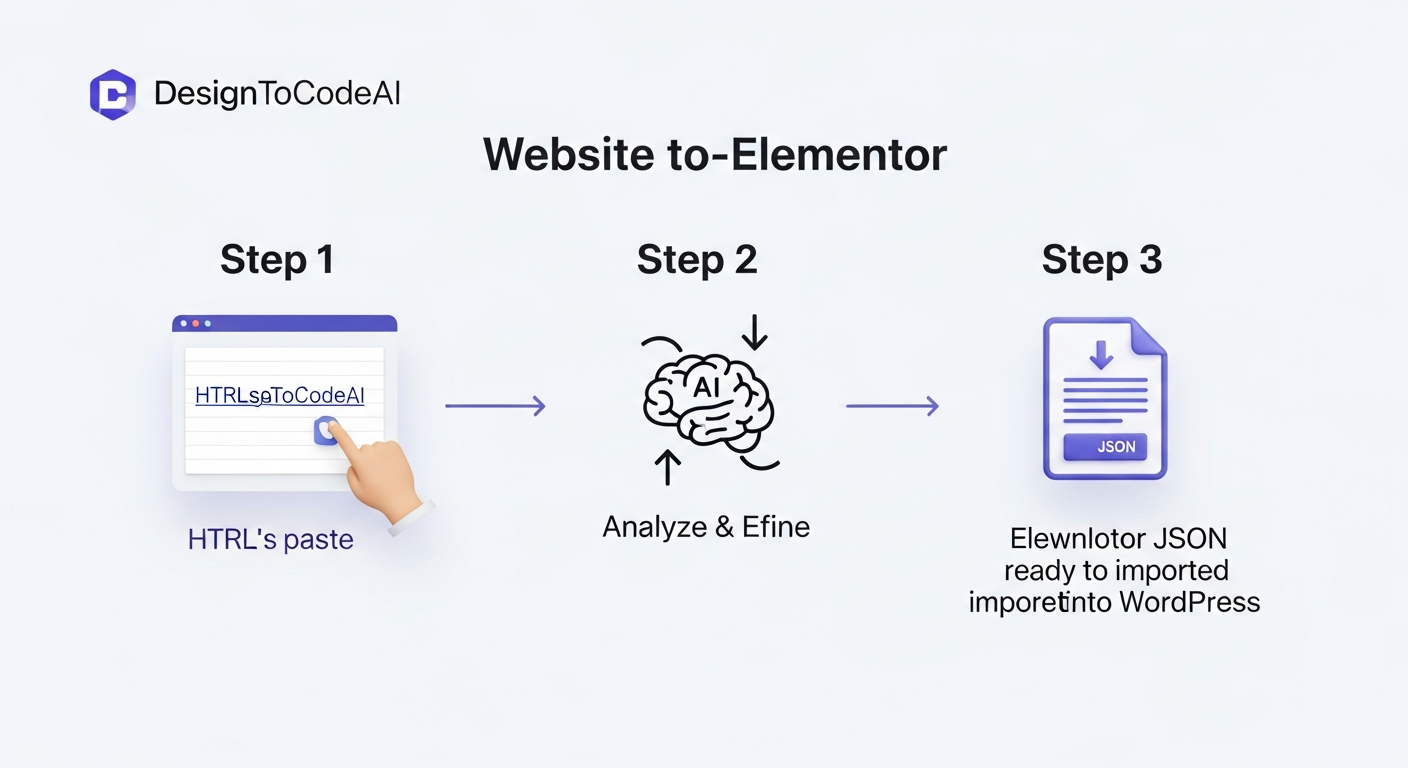
Step 5: Review the First-Draft Template
When the generation is complete, the output area will display the raw JSON code of the Elementor template. While you don’t need to understand the code itself, this is the data that will build your page. At this stage, you can use the ‘Preview’ button to see a live visualization of the generated template.
Step 6: Refine the Output with Simple Text Commands
If the preview isn’t quite right, you don’t have to start over. This is where the platform’s refinement feature shines. Below the output, there is a text box where you can provide simple, natural language instructions to fine-tune the result. For example, you could type:
- Layout: “Make the second section a three-column grid instead of two.”
- Styling: “Change the primary button color to #5A45FF and give it a 4px border-radius.”
- Typography: “Set all H2 headings to the ‘Inter’ font, size 36px.”
Then, click ‘Refine’. The AI will process your request and generate an updated JSON file, incorporating your changes.
Step 7: Preview, Copy, and Download Your Final JSON File
After refining the template to your satisfaction, you have several options. You can ‘Preview’ the final version, ‘Copy’ the JSON code to your clipboard, or—most commonly—click ‘Download’ to save the template as a .json file to your computer. This file is now ready to be imported into WordPress.
How to Import and Use Your New Template in WordPress
With your .json file downloaded, the final step is to bring it into your WordPress website and use it with Elementor. This is a standard Elementor procedure.
- Access the Elementor Template Library: From your WordPress dashboard, navigate to Templates > Saved Templates.
- Upload the Generated JSON File: At the top of the page, click the ‘Import Templates’ button. Choose the .json file you downloaded from DesignToCodeAI and click ‘Import Now’.
- Insert the Template onto a New Page: Create a new page or post and open it with the Elementor editor. Click the gray folder icon to open the template library. Go to the ‘My Templates’ tab, find your newly imported template, and click ‘Insert’.
- Making Final Edits in the Elementor Editor: The template will now appear on your page, with all elements as native Elementor widgets. You can now edit text, replace images, adjust styles, and make any final tweaks just as you would with a template you built manually.
Expert Tips for Achieving Pixel-Perfect Conversions
While the AI is powerful, a few strategic approaches can help you achieve even better and more accurate results. Here are some best practices from experienced users.
Pro Tip 1: Convert Complex Pages Section by Section
For very long or complex landing pages with numerous distinct sections, the AI can sometimes struggle to map everything perfectly in one go. According to our Frequently Asked Questions, a more reliable approach is to take screenshots of each major section of the page (e.g., hero, features, testimonials, footer) and convert them individually. This improves AI accuracy and gives you modular templates that are easier to manage and reassemble in Elementor.
Pro Tip 2: Use High-Quality, Well-Structured Websites as Your Source
The AI performs best when analyzing websites that follow modern web design standards with clear, logical structures. Websites built with clean HTML and CSS, responsive layouts (using flexbox or grid), and a discernible hierarchy will yield more accurate conversions. Outdated sites built with complex tables or legacy code may require more manual refinement.
A key strategy to consider is using the ‘Redesign’ feature if your source URL is visually dated but has a good content structure. The AI will use the content as inspiration while generating a completely fresh, professional layout based on modern design principles.
Pro Tip 3: Leverage AI Iterations for Intricate Layouts
The ‘Iterations’ setting is a powerful tool for complex designs. Each iteration is an additional pass where the AI reviews and refines its own work. If you are converting a page with overlapping elements, intricate background effects, or a unique grid system, setting the iteration count to 2 or 3 can significantly improve the final output’s fidelity, saving you refinement time later.
Understanding the Limits: What AI Conversion Doesn’t Do
To ensure a smooth workflow, it’s important to understand the tool’s focus. AI conversion is designed to capture and rebuild the visual structure and styling of a static webpage. It is not designed to replicate complex backend functionality or dynamic content. This means elements like custom JavaScript animations, interactive calculators, or live content feeds (e.g., blog post archives, social media streams) will not be functional in the generated template. The layout for these elements will be created, but you will need to re-implement their functionality using appropriate Elementor widgets or custom code after importing the template.
Manual Rebuilding vs. AI Conversion with DesignToCodeAI
| Aspect | Manual Method | DesignToCodeAI Method |
|---|---|---|
| Time Investment | Hours to Days | Minutes |
| Accuracy | Prone to human error, inconsistencies | High fidelity, refined with natural language commands and iterations. |
| Technical Skill Required | High (CSS, HTML, Elementor expertise) | Low (Basic Elementor knowledge) |
| Cost | High (developer hours) | Low (pay-as-you-go points system, free points on signup). |
| Scalability | Low (difficult to replicate quickly) | High (convert unlimited sites quickly) |
Troubleshooting Common AI Conversion Issues
Even with advanced AI, you may occasionally encounter minor issues. Here’s how to address some of the most common ones to ensure your final template is perfect.
Handling Mismatched Fonts or Colors
If the AI doesn’t perfectly match a font or color, it’s often due to the source site using a very obscure font or complex CSS variables. The easiest fix is to use the natural language refinement feature. Simply instruct the AI: “Change all H2 heading fonts to ‘Poppins’ and the primary color to #1A1B26.” Alternatively, you can make these global changes in just a few clicks once the template is imported into Elementor’s Site Settings.
Correcting Layouts with Overlapping or Complex Elements
For designs with overlapping images or unconventional z-index properties, the AI might misinterpret the layering. This can often be corrected with a refinement command like “Set the top image’s z-index to 10 to bring it in front of the background shape.” If the issue persists, converting that specific section via a screenshot can provide the AI with a clearer visual context to work from.
What to Do If the Template Fails to Import
In the rare event that an Elementor template file fails to import into WordPress, the issue is typically related to server settings or a corrupted file. First, try re-downloading the .json file from DesignToCodeAI. If that doesn’t work, check your server’s file upload permissions and ensure that JSON files are an allowed file type. If a generation fails on the platform side due to a technical error, points are usually refunded automatically.
Frequently Asked Questions
Can I convert any website to an Elementor template using this method?
Yes, you can use the URL of almost any public website. However, the best results are achieved with websites that have clear, modern layouts. Highly complex or outdated sites with convoluted code may require more AI refinement to convert the website to an Elementor template accurately.
Is the generated Elementor template responsive?
Yes. DesignToCodeAI is designed to produce responsive layouts using modern CSS principles like flexbox and grid. The resulting Elementor template is structured with responsive settings that you can further adjust within the Elementor editor.
How accurate is the AI conversion from a website URL?
The AI aims for high fidelity, but accuracy can depend on the complexity of the source website. Most outputs are production-ready or require only minor adjustments. The key is to use the refinement and iteration features to guide the AI to a pixel-perfect result.
What’s the difference between the ‘Redesign’ and standard conversion options?
The standard conversion attempts to create a 1:1 copy of the source URL’s layout and styling. The ‘Redesign’ option uses the source URL for context and inspiration but generates a completely new, modern design based on current UI/UX trends.
How does the DesignToCodeAI point system work for conversions?
Each generation consumes a set number of ‘Power Points’. The cost depends on the settings, such as the number of iterations selected. New users receive free points to start, and more can be purchased in packs. You can find more details on our pricing page.
The era of tedious, manual website rebuilding is over. By embracing AI-powered tools, you can fundamentally change your web development workflow, freeing up time to focus on creativity, strategy, and client relationships. This guide has shown you a clear, repeatable process for turning any website into a fully editable Elementor template, a skill that provides a massive competitive advantage.
Ready to stop rebuilding and start generating? Try DesignToCodeAI for free and convert your first website in minutes.